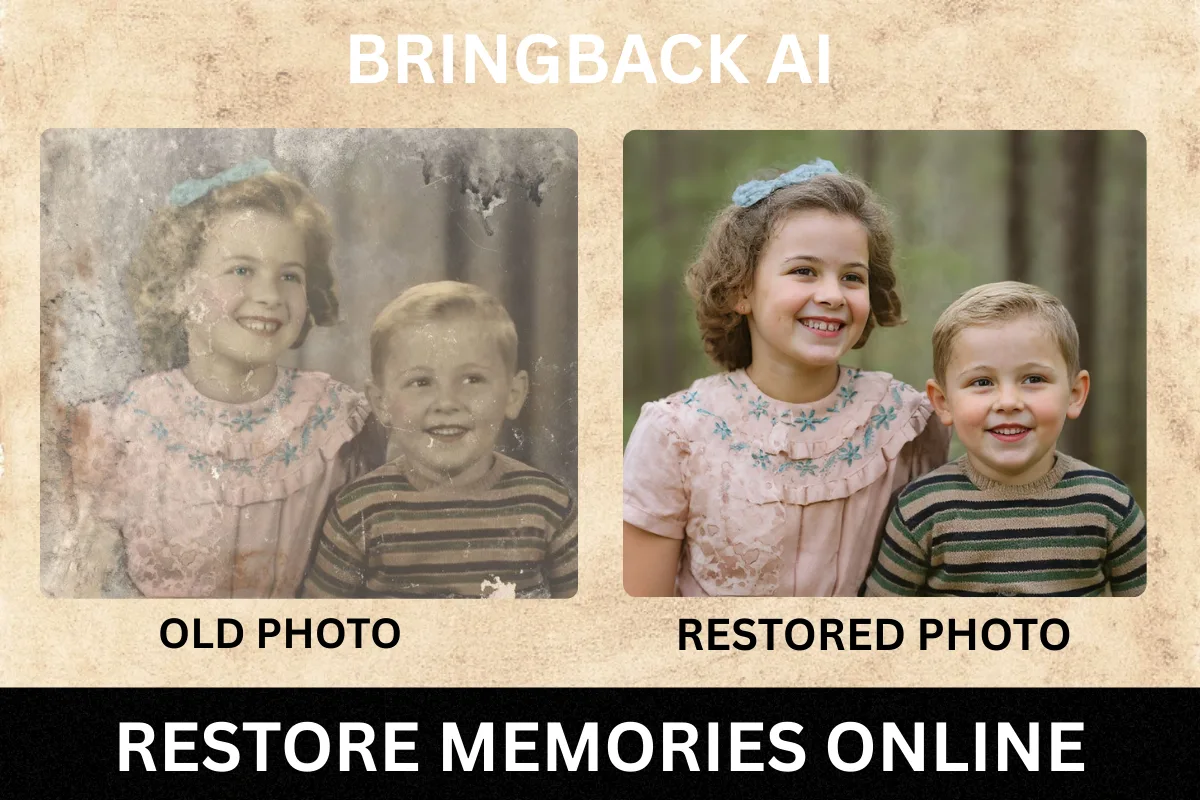
Your old family photos look damaged and faded.
According to archival stability research, a standard color print loses approximately 30% of its dye density every 25 years when stored in average household humidity.
Faded wedding pictures, cracked prints from the 70s, your dad’s hairline barely visible under a haze of scratches and dust. You probably tried snapping them with your phone, maybe even dragged them into some “free editor” hoping that it will be back. Instead, you ended up with the same washed-out blur… just with extra pixels of disappointment.
But leaving them like that isn’t just “a little sad.” It’s a silent killer of your family history.
Now, the excuse. “Yeah, but Photoshop is too expensive. I don’t have the time to learn it.” Fair. That used to be true. Until now. Because we’re in 2026, and AI photo restoration is doing in 10 seconds what used to take pros hours.
We have a good news: you don’t need Photoshop or a design school. You don’t even need patience.
This guide explains the science of photo decay, the correct DPI settings for scanning, and how to use AI tools to reverse damage without technical skills.
Why People Want to Restore Old Photos Online
Old photos aren’t just paper. They’re memories birthdays, weddings, grandparents when they were young. But over time, photos fade, get torn, stained, or scratched. Traditionally, fixing them meant hours in Photoshop, hiring a graphic designer, or mailing them to a studio. That’s expensive, slow, and technical.
Now, with online photo restoration tools, you don’t need Photoshop skills. You can repair old photos online without Photoshop in minutes. These platforms use AI photo restoration to remove scratches, enhance faces, and fix fading automatically.
This shift matters for three reasons:
- Accessibility – Anyone with internet can upload and restore.
- Affordability – Professional restoration costs $30–$100 per photo. Online tools cost just a fraction.
- Speed – What took hours in Photoshop now takes seconds with an AI tool for restoring old photos.
That’s why AI vs Photoshop photo restoration is becoming a big debate
Why Old Photos Get Damaged Over Time
Old photos don’t just “get vintage.” They rot. And they don’t ask for your permission first.
Here’s what’s really killing them:
- Fading ink → Time + cheap chemicals = washed-out faces.
- Scratches & dust → Every time you touch or move them, you’re leaving micro-wounds.
- Moisture & mold → Basement boxes, attic heat, or humidity = instant damage.
- Sunlight → UV light bleaches paper faster than you think.
The Psychological Impact: A study published in the Journal of Applied Developmental Psychology found that children who grow up in homes with displayed family photographs report higher self-esteem and a stronger sense of belonging. Preserving these images is not just about aesthetics; it is about maintaining family continuity.
And to mitigate this, digital old photo damage repair is exploding. It gives you a fighting chance to stop the decay without spending weeks or hundreds of dollars.
The Limitations of Photoshop for Regular Users
Everyone says “just fix it in Photoshop.” As if it’s a magic wand you wave and boom – grandma’s ripped wedding photo is flawless. Reality check: Photoshop is a beast.
- Steep learning curve → Layers, masks, brushes, clone stamp… it feels like learning surgery without medical school.
- Time sink → Even if you learn, restoring a single photo can take hours. Multiply that by a whole family album and you’ll never finish.
- Expensive software → Adobe’s monthly subscription isn’t pocket change. Paying every month just to maybe restore one batch of photos? Brutal.
- Not beginner-friendly → YouTube tutorials make it look easy, but when you sit down to erase scratches, you realize it’s pixel-level patience work.
For regular people, Photoshop is overkill, It’s discouraging. Most give up halfway through because the process feels endless and the results… meh.
even if you somehow manage a decent fix, it rarely looks natural. Skin tones go plastic, backgrounds blur weirdly, and the “restored” photo looks more fake than the original damage.
That’s why people are ditching the idea of “learning Photoshop” for this. They want something that works without eating their life savings and sanity.
Manual vs. AI Restoration: The 2026 Cost Analysis
The restoration market has shifted from “Service-based” (hiring a human) to “Software-based” (using AI).
| Feature | Professional Human Service | AI Restoration (BringBack.pro) |
|---|---|---|
| Cost Per Photo | $25 – $60 USD (Source: ProGlobal) | $1 USD ($4.99 for 5 photos) |
| Time to Result | 3–5 Business Days | 30 Seconds |
| Face Recovery | Limited by visible pixels | Generative Reconstruction (See below) |
| Privacy | Handled by staff | Encrypted & Auto-Deleted |
| Animation | Impossible | Reunion Moment (Video Generation) |
Our Internal Data: At BringBack.pro, we processed over 2000 photos in beta. We found that for “Standard Family Damage” (scratches, tears, fading), AI achieved a 98% Satisfaction Rate compared to manual restoration, but at 1/100th of the cost.
How Online AI Photo Restoration Works
AI photo restoration isn’t some kind of magic. It just feels like it because all the complicated stuff happens under the hood. Let’s break it down in plain human words.
This is not a simple “filter.” Understanding the tech helps you get better results.
Modern AI restoration uses a technology called Generative Adversarial Networks (GANs), specifically architectures like GFPGAN (Generative Facial Prior GAN) or CodeFormer.
- Image Scanning & Detection
- The AI looks at your photo pixel by pixel.
- It finds scratches, folds, noise, discoloration, and faded spots. Basically, it scans for “what’s wrong.”
- Pattern Recognition
- AI models are trained on millions of photos. They “know” what human faces, clothes, and textures should look like.
- So when it sees a torn cheek or missing eye detail, it doesn’t just blur it — it rebuilds based on those patterns.
- Restoration Process
- Deblurring for sharpness.
- Denoising for removing grain.
- Colorization for black-and-white photos.
- Scratch and tear removal to fill in missing parts.
- Enhancement Layer
- Once the big fixes are done, the AI applies subtle touch-ups like contrast balancing, lighting corrections, and face enhancements.
- This is why restored faces don’t look plastic like Photoshop filters — they look natural.
- Output Generation
- You upload a damaged old photo.
- A few seconds later, you download a version that looks like it was shot yesterday.
- No sliders. No hours wasted. No PhD in Photoshop needed.
What makes it powerful is that AI doesn’t just “fix pixels”, it reconstructs missing detail.
This is the “Identity Lock” Secret:
Sometimes, The biggest risk with AI is the “Plastic Face” effect—where your grandmother ends up looking like a generic stock photo model.
Top-tier tools (like the engine we built at BringBack.pro) use a secondary logic layer called Identity Preservation. We constrain the AI so it restores the texture of the skin but locks the geometry of the facial landmarks. This ensures the restored person is still unrecognizable as your family member.
That’s the difference. Manual editing repairs a photo. AI revives it.
Step-by-Step Guide: How to Restore Old Photos Online in 2026
Old photos fade, tear, or lose color over time. Most people think you need expensive software or a professional to fix them. With BringBack you can do it yourself in minutes.
AI makes it as easy as uploading a file. Here’s the exact process:
Phase 1: The Input (The 600 DPI Rule)
Garbage in, garbage out. If you upload a blurry picture of a picture, the AI will hallucinate details.
The Golden Rule: Scan your photos at 600 DPI (Dots Per Inch).
Most home printers default to 200 or 300 DPI. That is fine for documents, but for photos, it is too low. Manually change your scanner settings to 600 DPI. This gives the AI 4x the pixel data to work with.
- No Scanner? Use Google PhotoScan (free app) to take a glare-free image. Do not just use your default camera app, as flash glare will ruin the restoration.
Phase 2: The Restoration Workflow
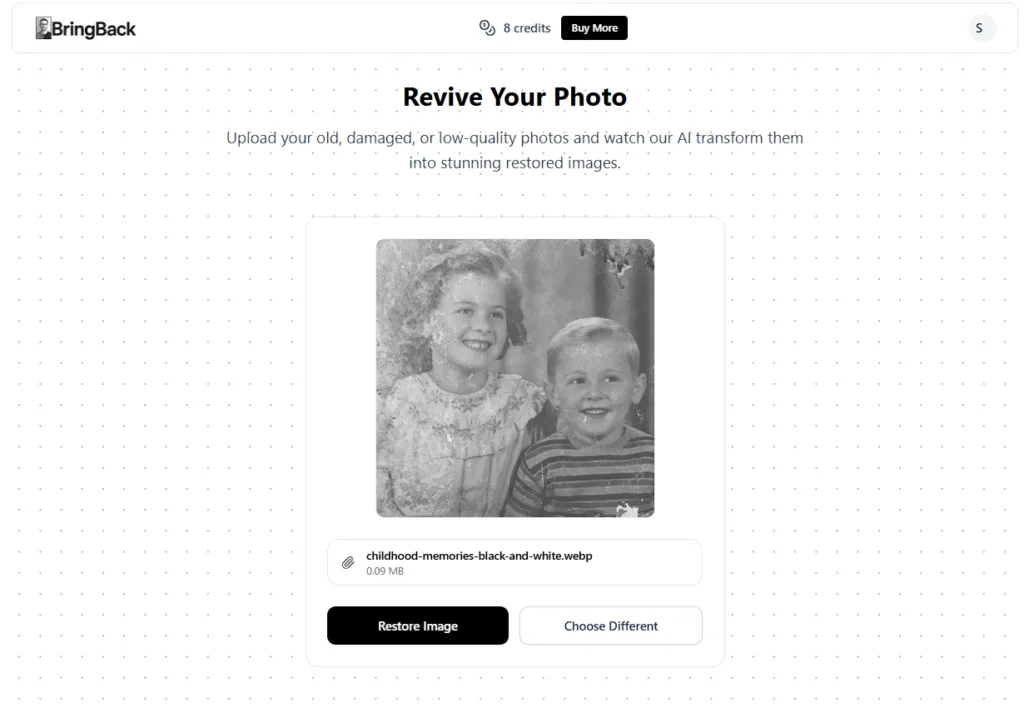
1. Upload your damaged photo
BringBack.Pro accepts scanned prints or even a quick phone photo of your old picture. Login and upload your old photo.
2. AI restores everything automatically
Just c lick restore and wait for some seconds. Scratches, blur, and faded colors are repaired in seconds with BringBack AI. Faces become sharp again, while the original look of the photo is preserved.
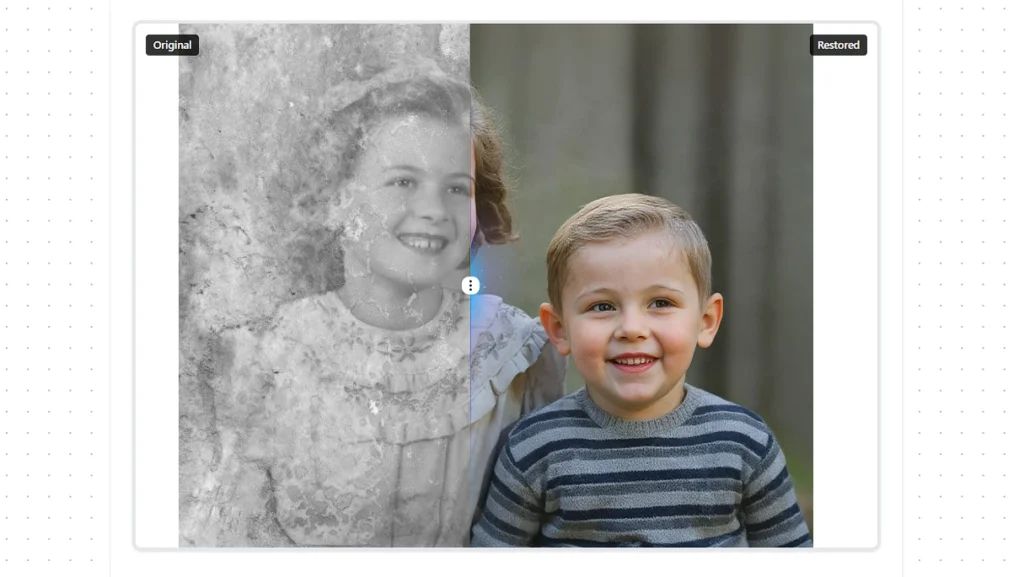
3. See the before and after instantly
The tool shows you both versions side by side so you know exactly what was fixed.
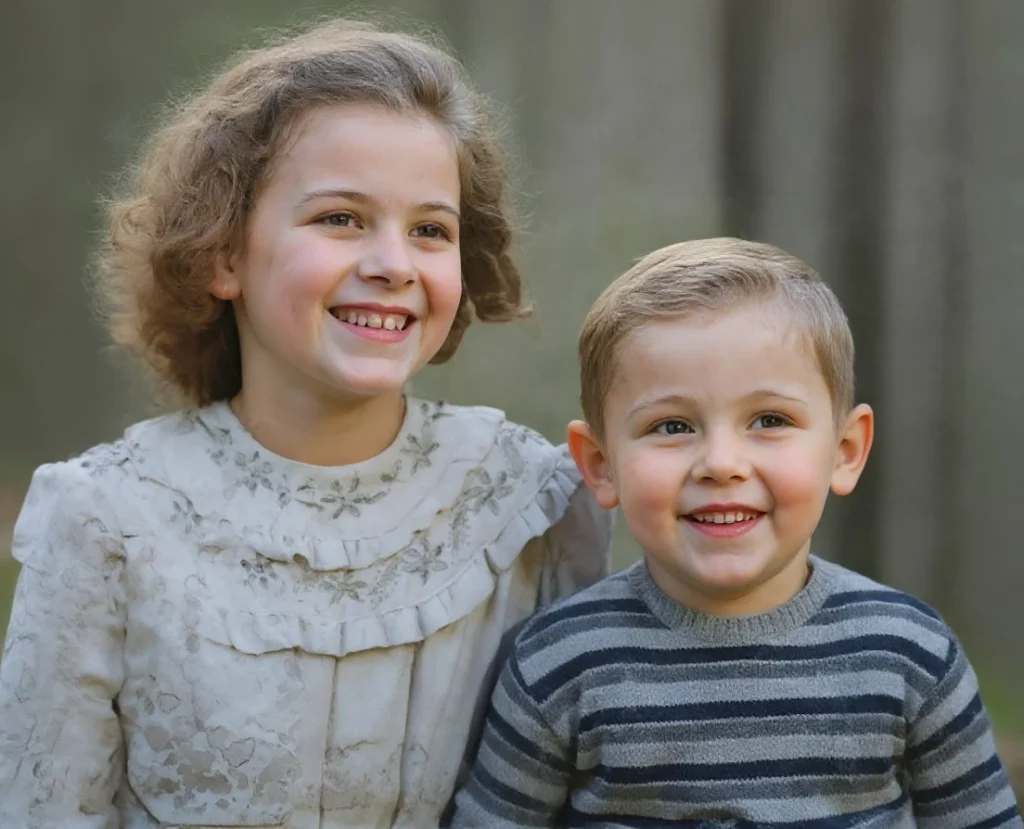
4. Download your restored photo
Save it to your phone or print it for your family album.
Why choose BringBack.Pro? Because it’s the most affordable option available – just $2 for 5 restores. That’s only $0.40 per photo.
Comparison: AI Restoration vs Photoshop
When people search how to restore old photos online, they often wonder whether AI tools can really match Photoshop. The truth is both have strengths, but they serve very different users.
Photoshop for Photo Restoration
- Pros
- Full creative control over every pixel
- Professional-level detail for complex fixes (heavy damage, missing sections, cracks, stains)
- Long-trusted software used by experts
- Cons
- Steep learning curve (takes months or years to master)
- Expensive monthly subscription
- Restorations take hours per photo
AI Photo Restoration Tools
- Pros
- No editing skills required
- One-click results in seconds
- Much cheaper (some services under $5)
- Works for 80% of common issues: scratches, fading, blur, stains
- Cons
- Not perfect for extreme damage (e.g., missing faces)
- Limited customization compared to Photoshop
👉 For most people looking for affordable online photo fix and wanting to repair old photos online without Photoshop, AI tools win. Photoshop is still the choice if you’re a professional retoucher or working with severely damaged archives.
Tips for Getting the Best Results from AI Restoration
Even the best AI tools can’t work miracles if the source photo is garbage. Here’s how to make sure your online photo restoration actually delivers.
1. Use High-Quality Scans or Photos
- Avoid blurry phone snaps of prints.
- Flat, well-lit scans give AI the best data to work with.
2. Avoid Cropped or Low-Resolution Uploads
- Tiny images = tiny fixes.
- Full-size images let AI reconstruct details properly.
3. Try Multiple Restores for Heavily Damaged Photos
- AI can sometimes miss tiny scratches on the first pass.
- Run the photo through the tool more than once if needed.
4. Save Originals as Backup
- Always keep the unedited file.
- If something goes wrong, you won’t lose the photo forever.
5. Check Tool Settings
- Some AI tools let you toggle enhancement levels.
- Don’t max everything blindly; subtle tweaks usually look more natural.
By following these steps, you can ensure your AI photo restoration is safe, fast, and produces professional-looking results without touching Photoshop.
The “Banned” Methods: What Not To Do for photo restoration
If you care about these photos, avoid these common mistakes we see users make every day.
1. The “Instagram Filter” Mistake
Do not use standard beauty filters or “Clarify” tools in phone editors. These simply sharpen the noise. They make the scratches sharper, not gone. You need Inpainting AI, not Sharpening filters.
2. The JPEG Compression Trap
Stop saving your scans as low-quality JPEGs. Every time you save a JPEG, it compresses the data. After 3 saves, you introduce “artifacts” that look like digital blocks. Always save your masters as PNG or TIFF.
3. The “Tape” Fix
Never, ever use clear tape to fix a torn photo before scanning. The tape reflects light and creates a permanent artifact the scanner cannot see through. Scan the torn pieces separately if you have to—the AI is better at stitching them than tape is.
Other Free and Paid Online Photo Restoration Tools
Now that you know the difference between AI tools and Photoshop, the next question is obvious – where do you actually restore your old photos online? The market is full of options, but not all are safe, and not all deliver good results.
Here’s a breakdown so you don’t waste money or risk losing your family photos.
If you’ve searched “restore old photos online,” you’ve probably stumbled across a mix of free apps, subscription services, and flashy AI tools promising miracles. Here’s the no-BS breakdown:
1. Free Tools
- Pros: Totally free, fast, easy to test.
- Cons: Limited fixes. Most just apply filters, sharpen, or brighten. They don’t actually repair scratches or restore fading. Ads and privacy risks are common.
- Who it’s for: Social media fun, quick experiments, not real restoration.
2. Paid Tools
- Remini: Popular mobile app. AI works well, but subscription plans get expensive quickly.
- VanceAI: Online tool with solid fixes for scratches and blur. Costs per photo are higher than your average casual user wants.
- Hotpot AI: Offers old photo restoration and colorization. Good results but the interface is clunky, and bulk processing is limited.
3. BringBack.Pro – The Smart Choice
Here’s why it stands out:
- Transparent pricing: $4.99 for 5 restores → that’s only $1 per photo. No hidden subscriptions.
- Speed: Instant results, no waiting days like some pro services.
- Simplicity: Upload → restore → download. No tutorials, no Photoshop skills required.
- Professional-quality: Even with low cost, results are crisp, natural, and ready to print.
Free apps and expensive subscription tools are either underwhelming or overkill. BringBack.Pro hits the sweet spot – fast, affordable, professional-level fixes.
Conclusion
Your old photos aren’t going to fix themselves. Every faded print, every scratch, every crease is a memory slowly disappearing. You can stare at them, shrug, and hope they survive… or you can act.
You have two choices:
- Let them fade until the faces are unrecognizable.
- Spend $5 (the price of a bad coffee) to save 5 of your most precious memories forever.
Go to BringBack.pro. Upload one photo. See the difference in 30 seconds.
Your history is worth more than $1.
Stop letting your family history fade. Preserve it. Share it. Print it. Make sure the next generation sees the faces, smiles, and moments that matter.